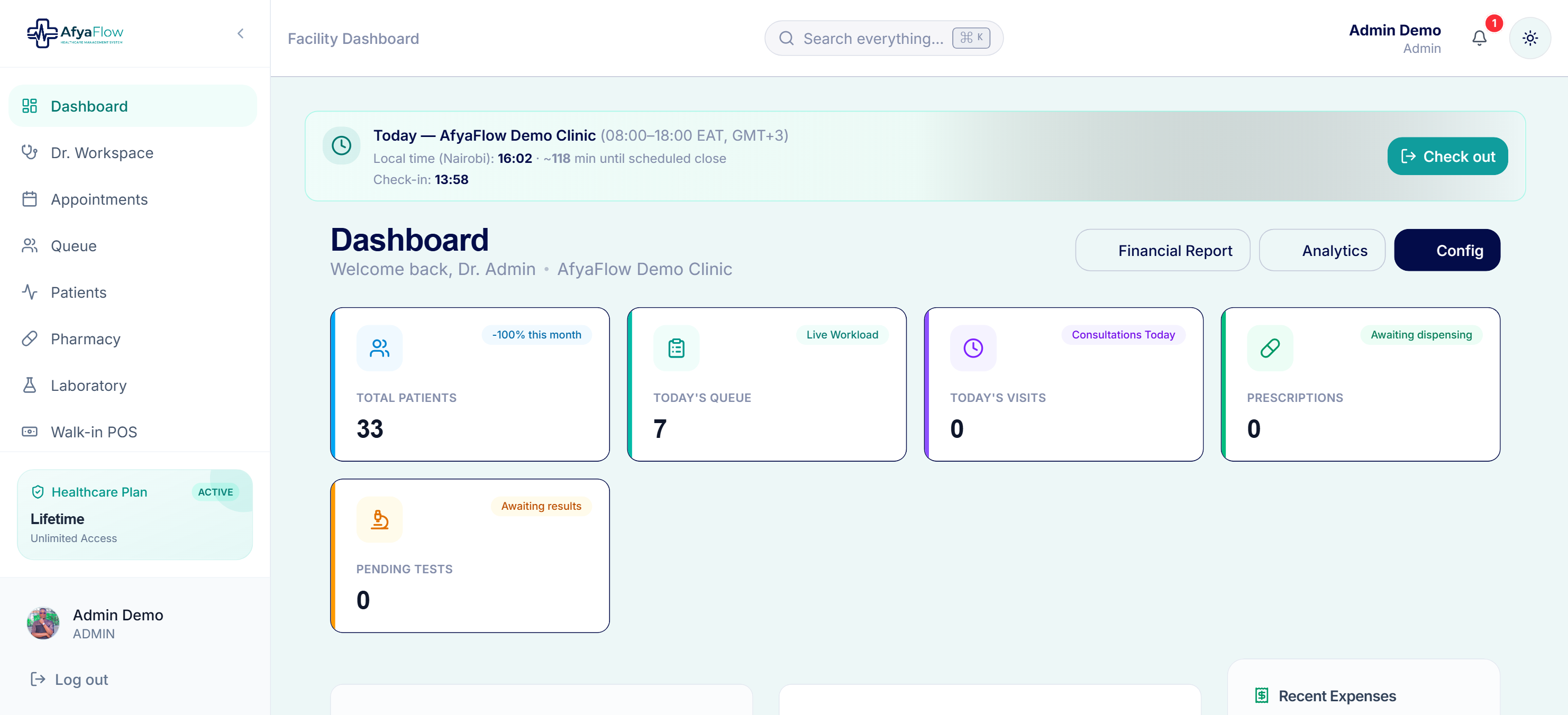
A live look at the AfyaFlow dashboard — your clinic at a glance.
1. Sign in
Open your clinic link and log in with the account your admin created.
2. Find your module
The left menu only shows what your role can access — no clutter.
3. Do the task
Register, consult, dispense, bill — each screen guides you step by step.
4. Track everything
Reports update in real time so owners always see the full picture.
The basics
Getting started
AfyaFlow runs in your web browser — no installation. Your administrator sets up the clinic and creates an account for each staff member with the right level of access.
- 1
Log in
Go to your clinic's AfyaFlow address and enter your email and password. Forgot it? Use “Forgot password” to reset by email.
- 2
Meet your dashboard
The home screen shows the numbers that matter for your role — today's patients, revenue, low stock and pending tasks.
- 3
Use the side menu
Navigate between modules from the left. You'll only see the areas your role is allowed to use.
- 4
Switch light / dark mode
Use the sun/moon toggle any time — the whole system adapts, including printouts stay print-friendly.
Roles keep things simple and safe
A receptionist sees reception tools, a pharmacist sees the pharmacy, an admin sees everything. This keeps screens uncluttered and patient data protected.
Front desk
Reception & patients
Register new patients once and reuse their profile on every visit. Everything — history, visits, bills, lab results — lives on one timeline.
- 1
Register a patient
Open Patients → New Patient, capture name, contact, age and gender. A unique patient number is created automatically.
- 2
Find returning patients
Use the search box to pull up a profile by name, phone or patient number in seconds.
- 3
Start a visit
From the profile, send the patient to the queue so the clinical team knows they're waiting.
One profile, full history
Allergies, past visits, prescriptions and documents in a single view.
Instant search
No more paper files — find anyone in a couple of keystrokes.
Portal (optional)
Patients can request appointments online where enabled.
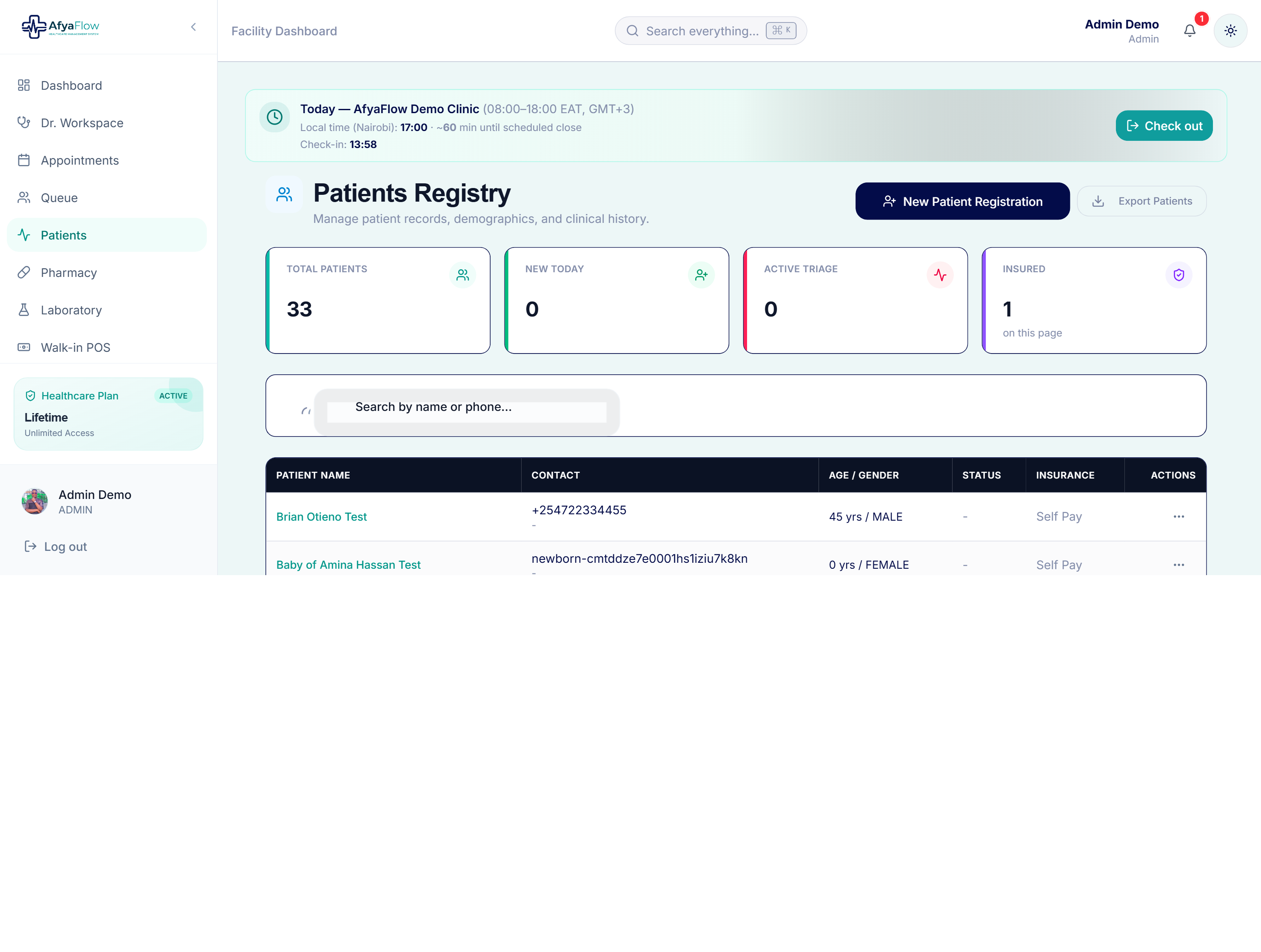
The patient registry — search, register and open any profile.
Flow control
Queue & triage
The live queue shows who's waiting and where they are in the journey. Nurses record vitals during triage before the patient sees the doctor.
- 1
See who's waiting
The queue updates in real time as patients check in and move between stages.
- 2
Record vitals (triage)
Capture temperature, blood pressure, weight, respiratory rate and more. Out-of-range values are flagged.
- 3
Send to the doctor
Once triaged, the patient moves to the consulting queue automatically.
Vitals are validated for you
Leave a field blank and it stays blank — AfyaFlow won't treat an empty box as zero, so you won't get false “out of range” warnings.
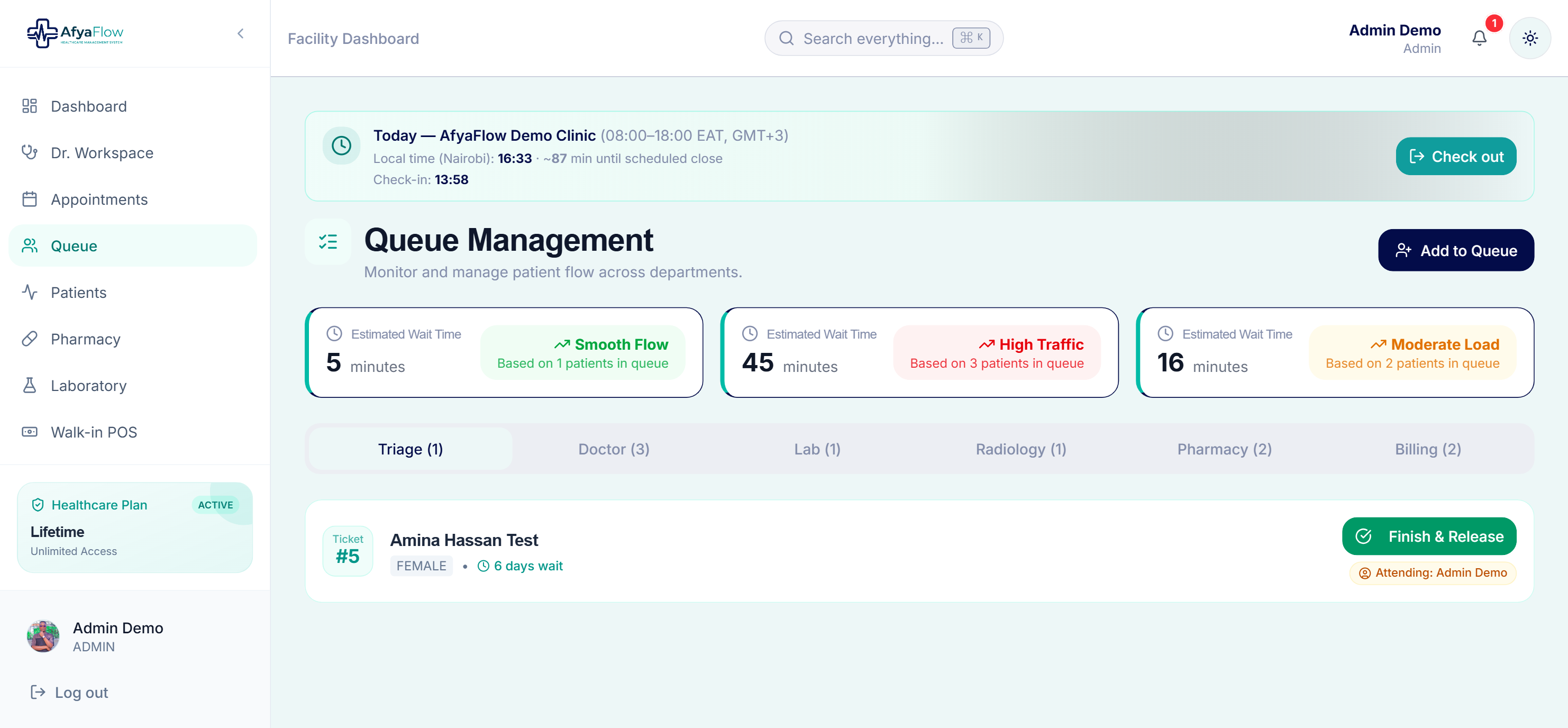
The live queue — see who's waiting and where they are in the journey.
Clinical
Doctor's consultation
A focused workspace for clinicians: review history, write structured notes, diagnose with ICD codes, and send prescriptions and lab orders in a click.
- 1
Open the patient
Pick the next patient from the consulting queue to see vitals and full history at a glance.
- 2
Write SOAP notes
Record complaints, examination, diagnosis and plan in a clean, structured form.
- 3
Diagnose with ICD codes
Search standardized ICD-10 diagnoses for accurate records and MOH reporting.
- 4
Prescribe & order labs
Add medicines and lab tests directly — they flow to the pharmacy and lab instantly.
History at a glance
Past visits, meds and results without flipping through files.
Smart prescribing
Pick from your live drug list; the pharmacy is notified automatically.
One-click lab orders
Requests appear on the lab bench in real time.
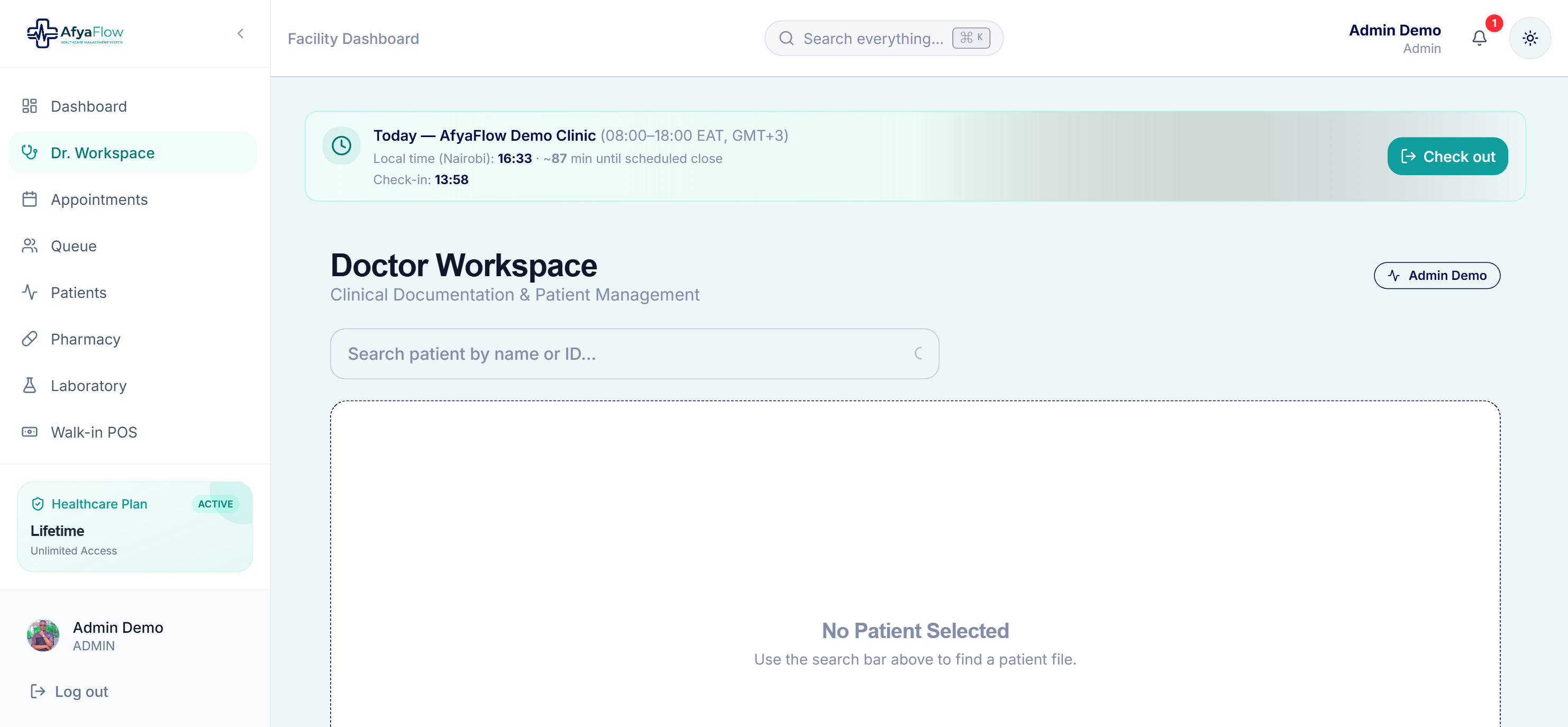
The clinician's workspace — history, notes, diagnosis and orders in one place.
Diagnostics
Laboratory
Lab requests arrive from the doctor automatically. Technicians enter results, and everyone sees them the moment they're saved.
- 1
Receive requests
Ordered tests appear in the lab worklist — no paper request forms.
- 2
Enter results
Record values against each test; the patient and doctor are updated instantly.
- 3
Print branded reports
Produce a clean, clinic-branded result sheet for the patient when needed.
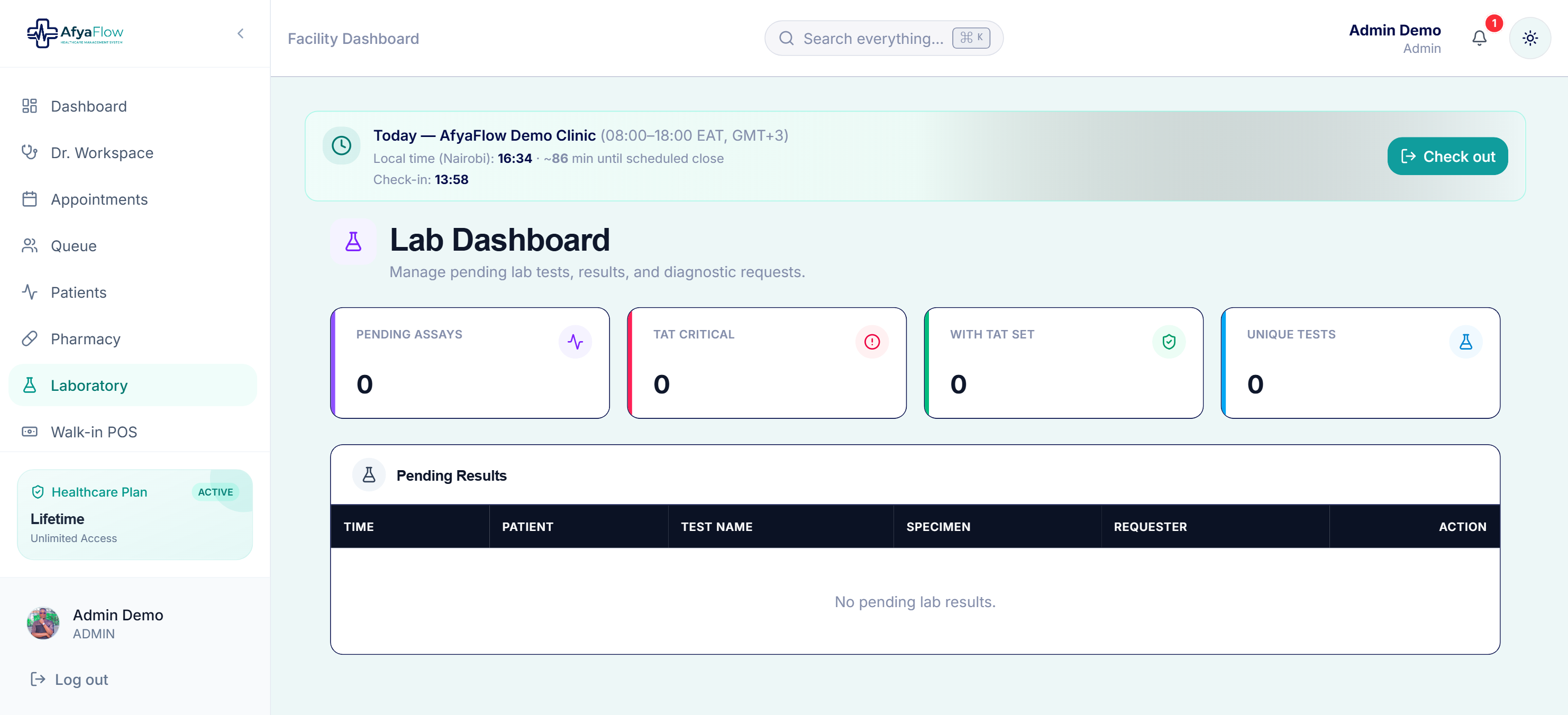
The lab worklist — receive requests and enter results in real time.
Dispensing & stock
Pharmacy & inventory
Dispense against prescriptions, sell over the counter, and keep stock accurate with batch and expiry tracking, low-stock alerts and stock-takes.
- 1
Dispense a prescription
Open the patient's prescription, confirm the items, and stock is deducted automatically.
- 2
Manage the drug list
Add items with strength, unit, pack size, batch, expiry, buying cost and selling price.
- 3
Watch stock levels
Low-stock and expiry alerts help you reorder before you run out.
- 4
Run stock-takes
Count physical stock and reconcile differences with a clear audit trail.
Understanding pack size
“Pack size” is how many sellable units make up one pack — e.g. a strip of 10 tablets. Stock and the point of sale always count in sellable units so your inventory stays exact.
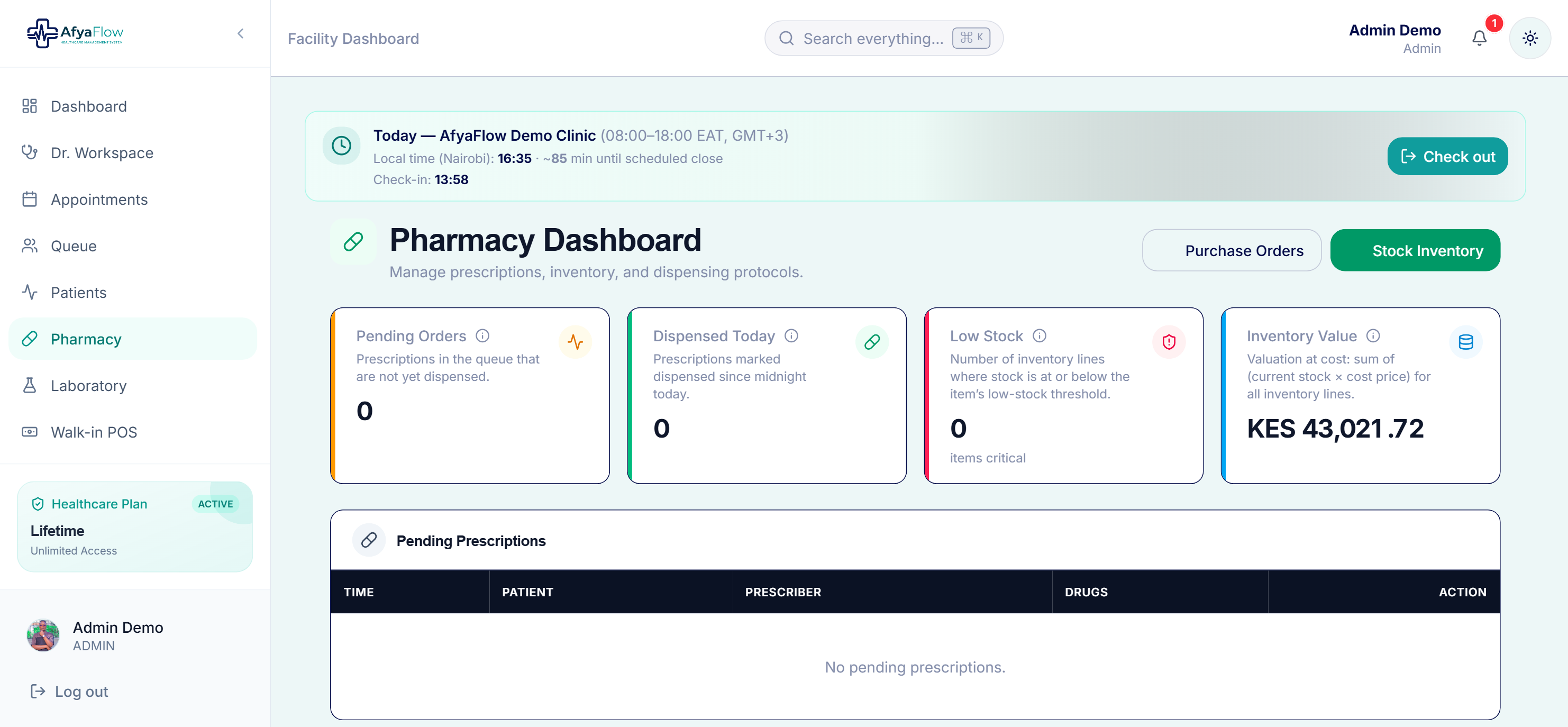
The pharmacy hub — dispensing, stock levels and expiry at a glance.
Restocking
Requisitions & purchasing
Staff request supplies, an admin reviews and approves, and the approved request becomes a purchase order you can email straight to your supplier. Quantities convert from packs to sellable units so stock stays correct.
Requisition
Staff request in packs
Approval
Admin reviews / edits
Purchase order
Auto-built in units
Send to supplier
Email the PO
Receive
Stock goes up
- 1
Raise a requisition
In Pharmacy → Requisitions → New, choose each item, enter the number of packs and the units per pack. The total units are worked out for you.
- 2
Admin reviews
An admin can adjust quantities or pack sizes, return it for corrections with a note, reject, or approve it.
- 3
Create the purchase order
An approved requisition loads into a purchase order at the correct total units (packs × units per pack).
- 4
Send to the supplier
Email the PO — with pack sizes and total units — straight from your clinic's own email address.
- 5
Receive stock
When goods arrive, record what was received with batch and expiry; stock updates automatically.
Why packs and units matter
If you order “5 packs” of a strip of 24, AfyaFlow orders 120 tablets — not 5 — so what arrives and what your system expects always match.
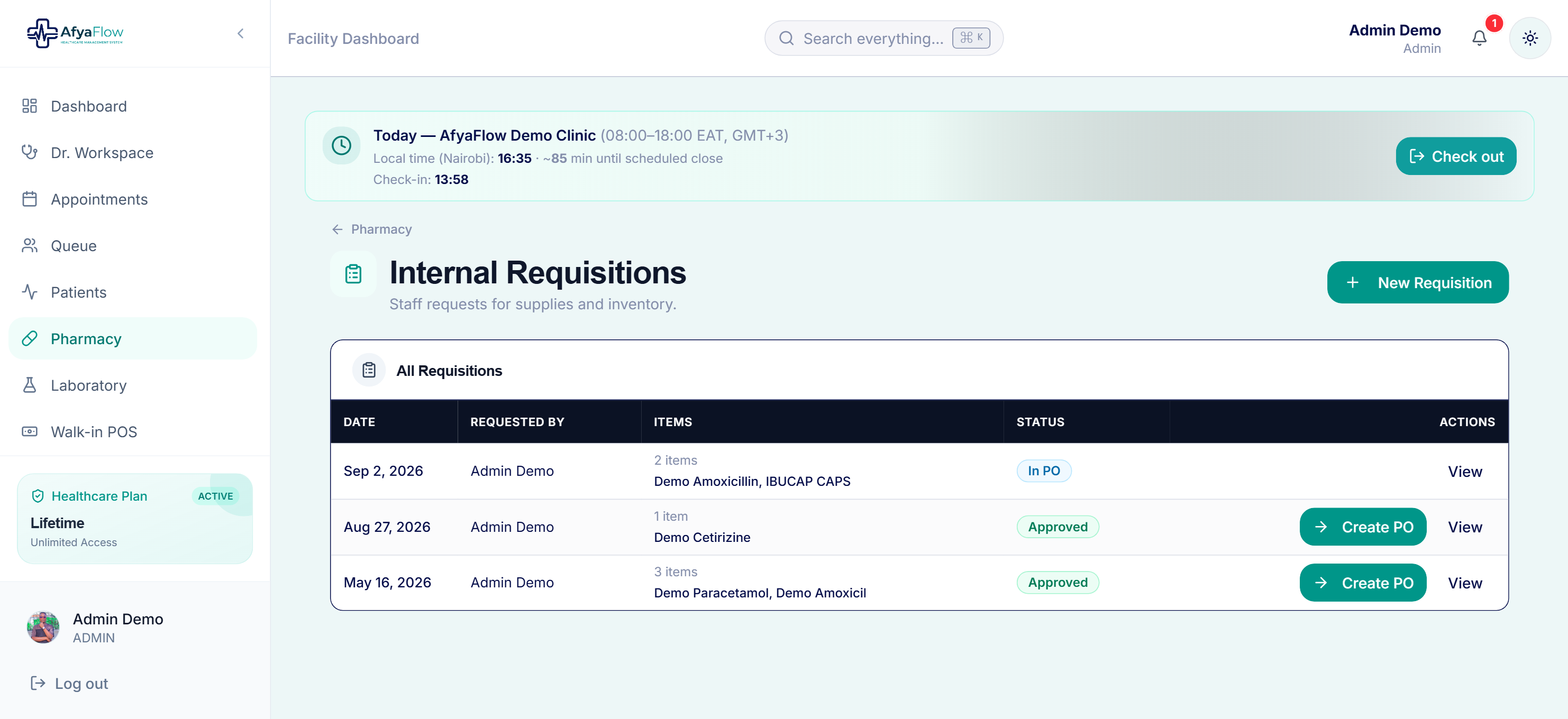
Requisitions flow from staff request to approval to purchase order.
Money in
Billing & POS
Every service, drug and test can be billed. Take payments by cash, M-Pesa or insurance, and run a fast walk-in point of sale for over-the-counter customers.
- 1
Generate invoices
Charges from consultations, labs and pharmacy roll into a clear patient invoice.
- 2
Receive payments
Record cash, M-Pesa or insurance — including part-payments and balances.
- 3
Use walk-in POS
Sell over-the-counter items quickly without creating a full patient visit.
- 4
Quote first, invoice later
Create a quotation and convert it to an invoice when the customer is ready.
From invoice to payment in one step
On an invoice, “Receive Payment” opens the payment screen for that exact bill — no re-typing amounts.
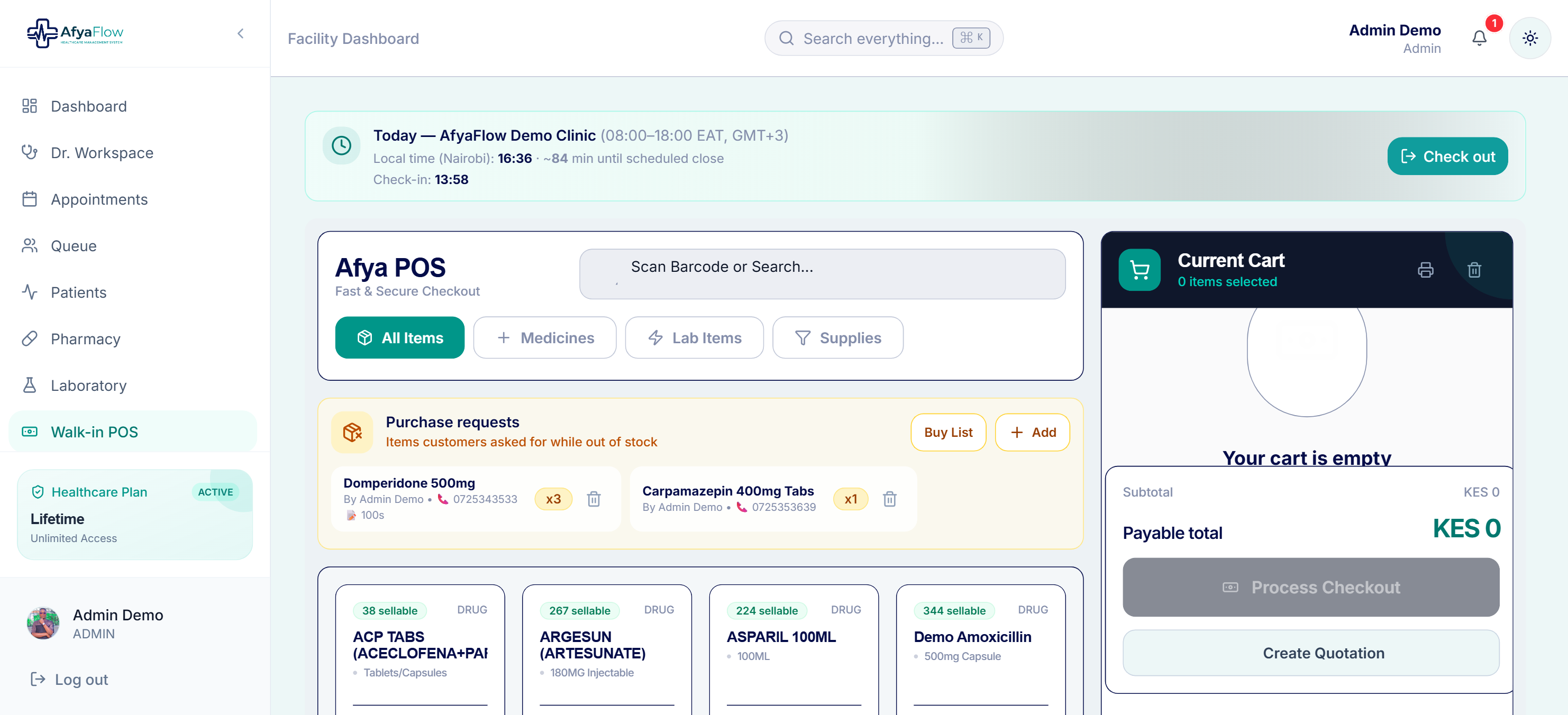
The walk-in POS — fast over-the-counter sales.
Insight
Reports & analytics
Owners and managers get a live view of the business — revenue, patient flow, stock value, consumption — plus ready-made MOH reports.
Financial reports
Income statement, daily summaries, supplier payments and reconciliation.
Stock reports
Valuation, expiry, reorder levels and consumption trends.
Operational & patient stats
Throughput, visit types and patient statistics at a glance.
MOH reports
Standard 705A, 705B and 711 outputs for reporting.
Print or export anything
Every report has a clean print layout, so you can hand a hard copy to management or the ministry in seconds.
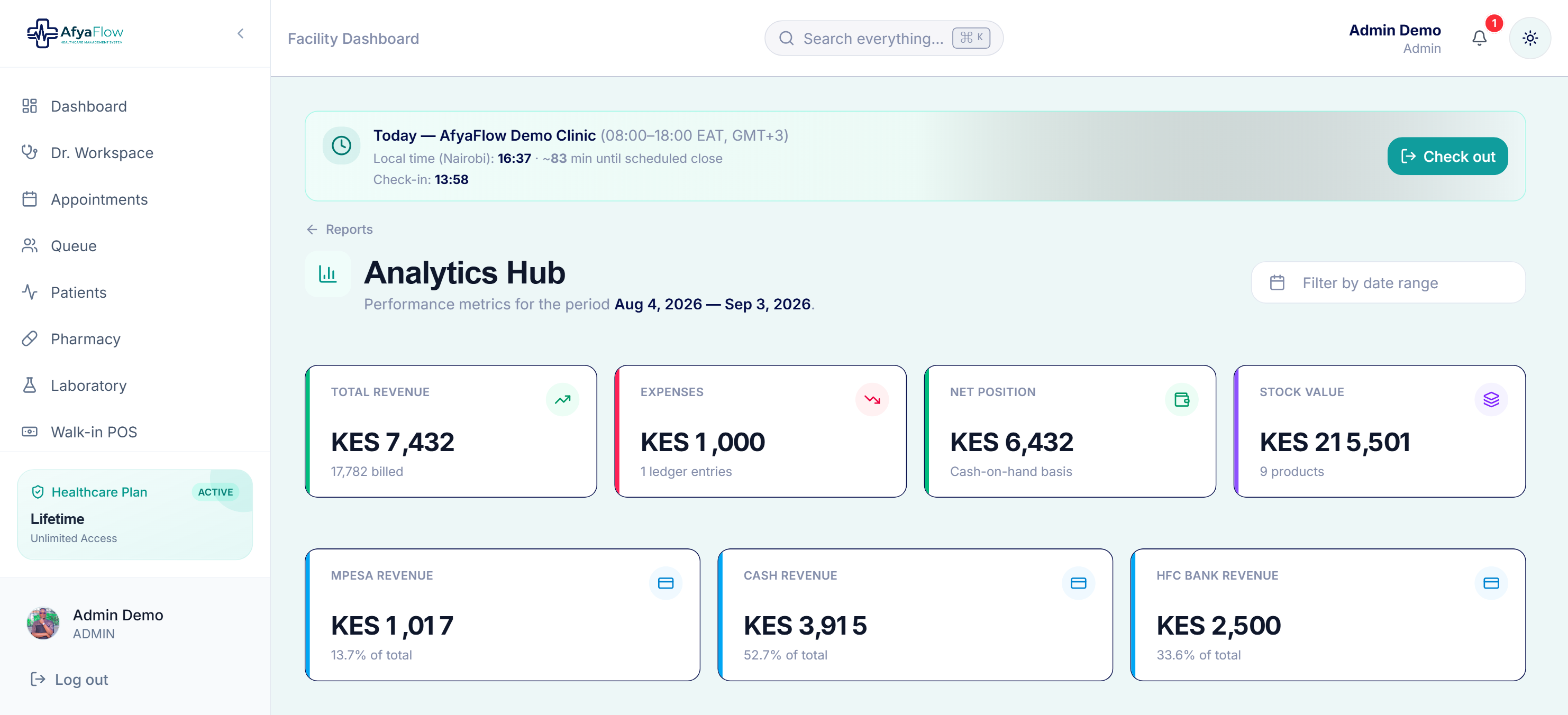
The Analytics Hub — revenue, expenses, net position and stock value at a glance.
Control
Admin & settings
Administrators configure the clinic, control who can do what, and set up branding and email — all without touching code.
- 1
Manage users & roles
Create staff accounts and assign a role or a custom permission profile that fits their job.
- 2
Fine-tune permissions
Grant exactly what's needed — for example, only admins (or staff you allow) can change stock levels, while others can still update prices.
- 3
Set clinic details & branding
Add your clinic name, address, contacts and logo — these appear on invoices and purchase orders.
- 4
Configure email (SMTP)
Send invoices, quotes and purchase orders from your own clinic email address.
Role-based access
Keep sensitive data and money controls with the right people.
Your own email
Documents reach customers and suppliers from your address.
Branded documents
Logo and details on every printout and PDF.
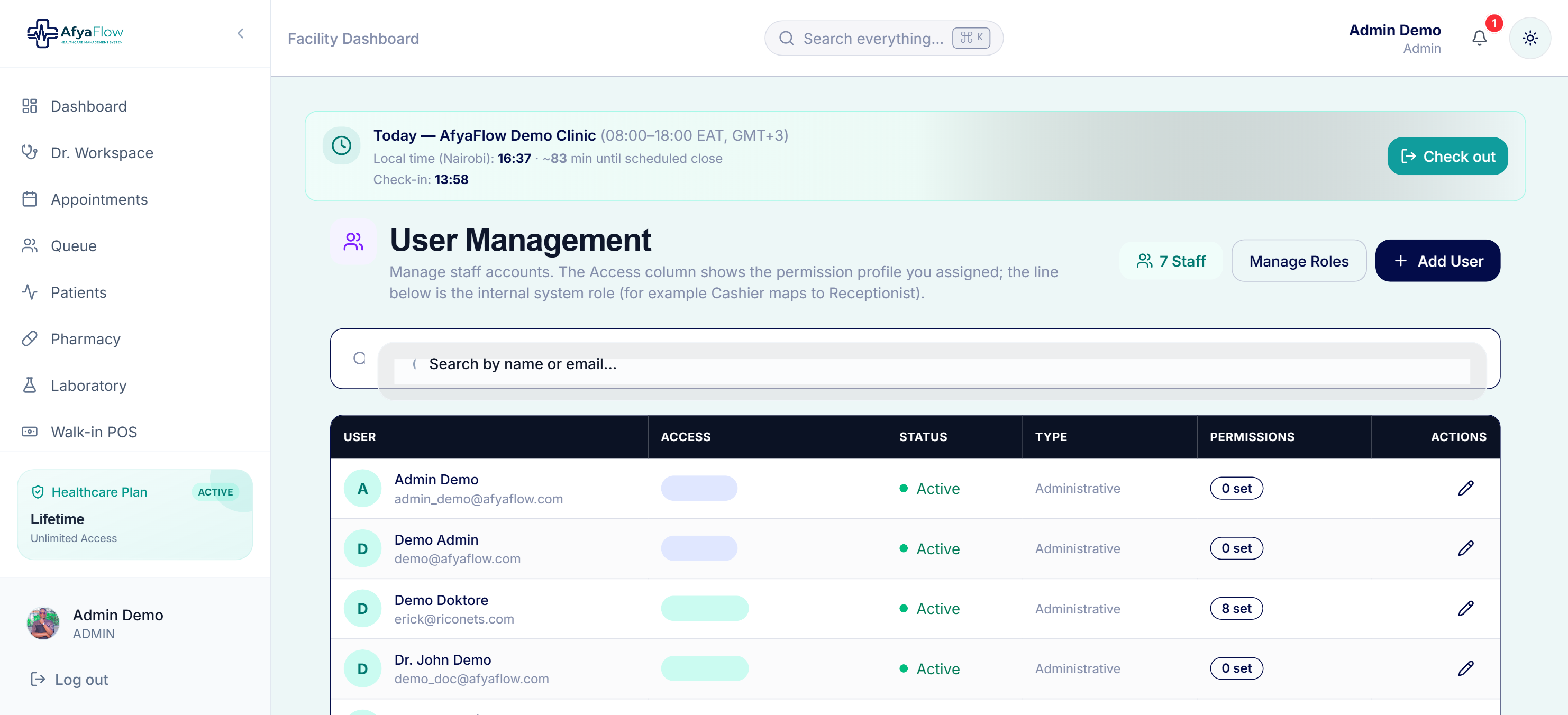
User management — accounts, roles and fine-grained permissions.
Grow when ready
Specialized modules
Beyond the core, AfyaFlow adds optional modules for larger facilities. We switch them on for your clinic when you subscribe — all sharing the same single patient timeline. Tap any module below to jump to its guide.
Inpatient / Wards
Beds, admissions, discharge
Read guideTheatre
Surgery scheduling & records
Read guideRadiology
X-ray, CT, MRI, ultrasound
Read guideMCH
ANC, PNC, immunization
Read guideCCC & CHV
HIV care & community health
Read guideMorgue
Mortuary records & storage
Read guideHRM & Payroll
Staff, leave, P9 forms
Read guideReferrals
Track patient referrals
Read guideTeam chat
Internal staff messaging
Read guideSpecialized module
Inpatient & wards
Admit patients to beds, manage the stay, and discharge with a printable summary. Bed occupancy stays accurate so you always know what's free.
- 1
Set up wards & beds
Create your wards and add beds to each. Bed numbers are generated for you without duplicates.
- 2
Admit a patient
Assign an existing patient to a free bed; the ward view updates immediately.
- 3
Manage the stay
Record ward rounds and add bed fees and other charges to the patient's bill as they accrue.
- 4
Discharge & print
Discharge the patient, free the bed, and print a clean discharge summary.
Live bed availability
Occupied vs. free beds are shown per ward, so admissions never clash.
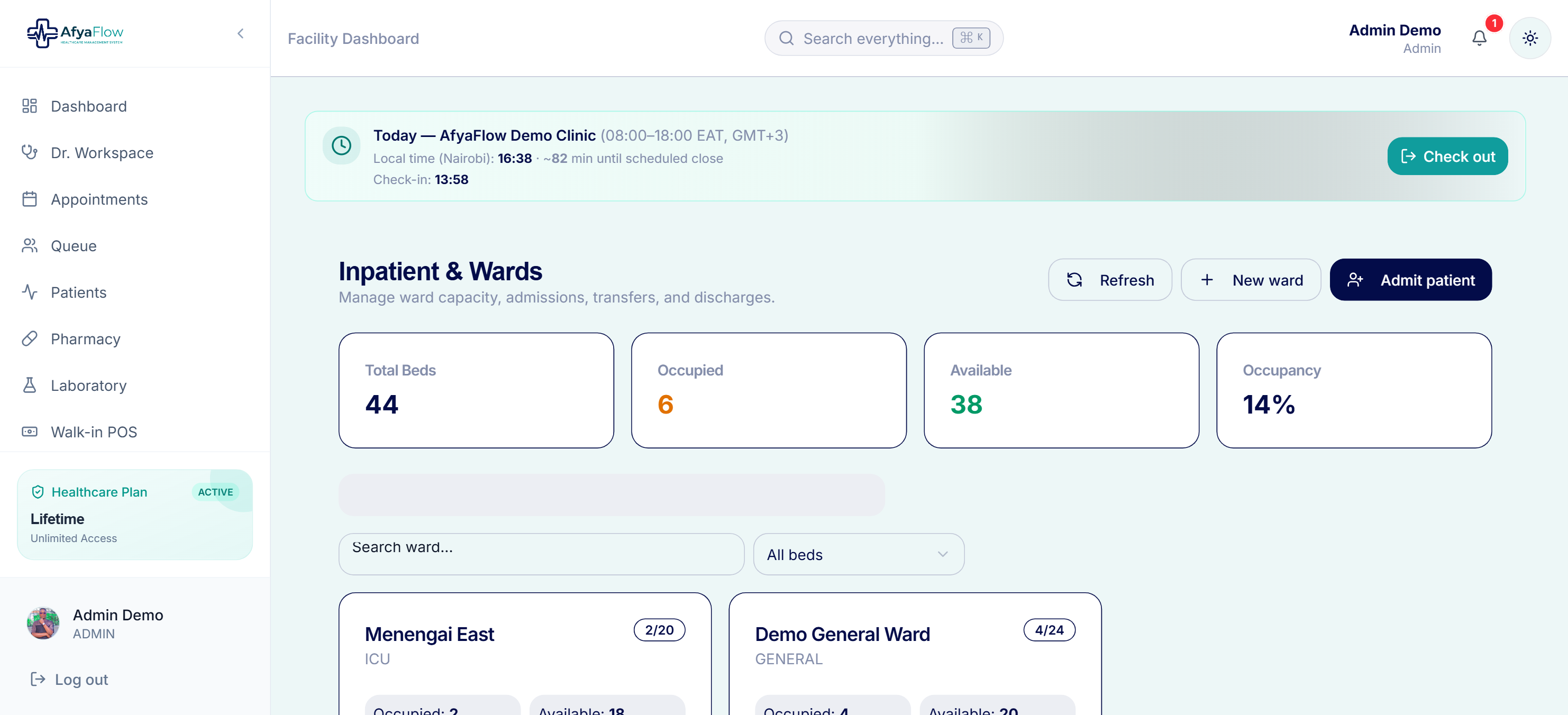
Ward and bed management with live occupancy.
Specialized module
Theatre & surgery
Plan operations, capture what happened, and bill theatre services and consumables — all linked to the patient record.
- 1
Schedule a procedure
Book the operation with patient, procedure, surgeon and date.
- 2
Record the operation
Capture the operation notes, team and any consumables used.
- 3
Bill it
Theatre charges and consumables flow to the patient's invoice automatically.
Specialized module
Radiology & imaging
Handle X-ray, ultrasound, CT and MRI requests end to end — orders in, findings out, results shared with the doctor and patient.
- 1
Receive imaging requests
Orders from the doctor land in the radiology worklist.
- 2
Record findings
Enter the report/findings for each study against the request.
- 3
Share & print
The doctor sees results instantly; print a branded report for the patient when needed.
Specialized module
MCH — mother & child health
One place for antenatal, delivery, postnatal, child welfare (immunization) and family planning, with the visit schedules built in.
- 1
Register in MCH
Enrol the mother and/or child into the MCH register.
- 2
Antenatal (ANC)
Record ANC visits and monitor the pregnancy over time.
- 3
Delivery & postnatal (PNC)
Capture the delivery record and follow up with postnatal visits.
- 4
Child welfare & immunization
Track growth and administer the immunization schedule (CWC).
- 5
Family planning
Record family-planning methods and follow-up dates.
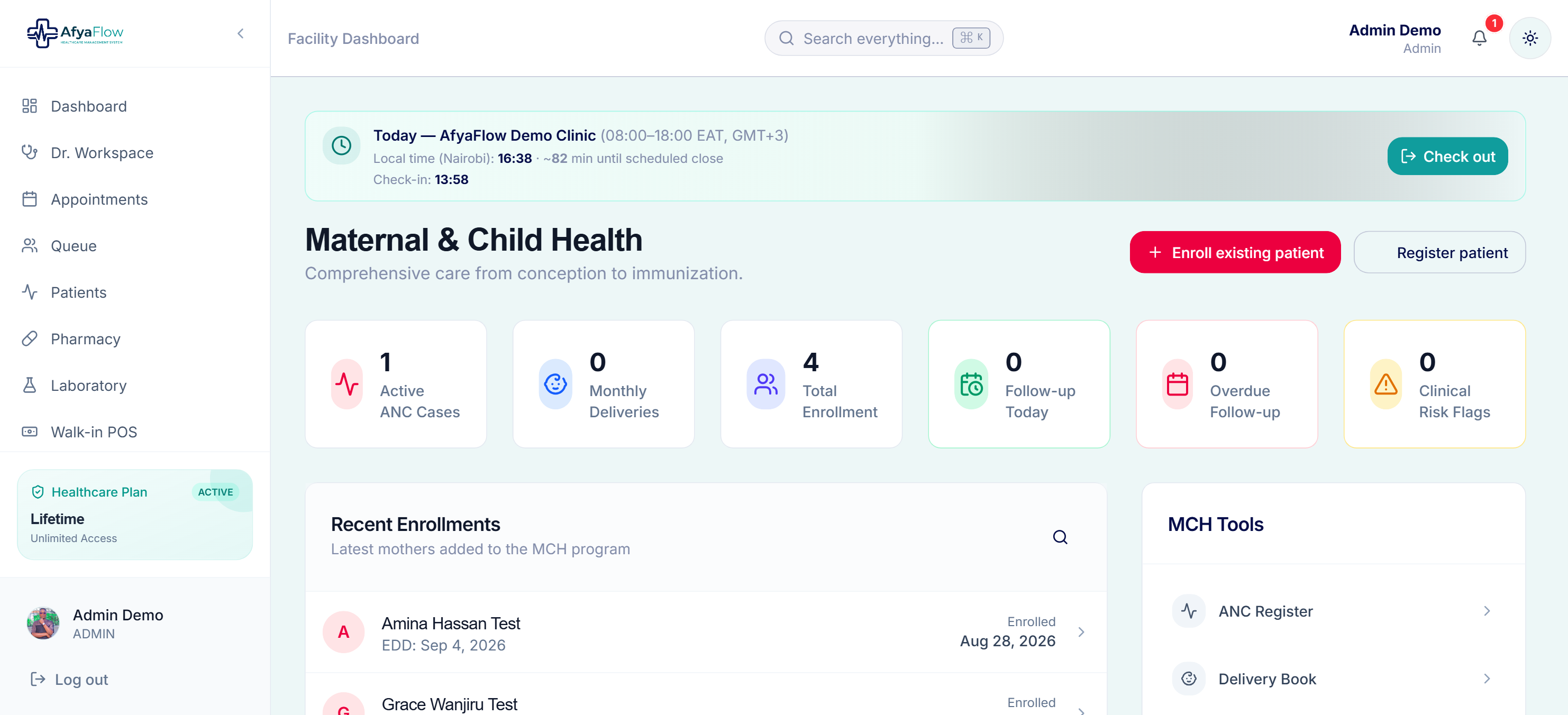
MCH — antenatal, delivery, postnatal, immunization and family planning.
Specialized module
CCC & community health
Manage comprehensive care (HIV) clients and community health worker (CHV) follow-up, keeping regimens and visits on track.
- 1
Enrol a client
Register the client into the comprehensive care programme.
- 2
Record visits & regimen
Log clinical visits and track the treatment regimen over time.
- 3
Community follow-up
CHVs record community visits and adherence follow-ups.
Specialized module
Morgue
Keep accurate mortuary records — admissions, storage assignment, and releases — with a clear audit trail and billing where applicable.
- 1
Register an admission
Record the deceased's details and next of kin.
- 2
Assign storage
Allocate a storage bay and track duration.
- 3
Record release
Complete the release with charges and documentation.
Specialized module
HRM & payroll
Manage staff records, attendance and leave, then run Kenya-compliant payroll with statutory deductions and printable payslips and P9 forms.
- 1
Manage employees
Keep staff profiles, roles and employment details in one place.
- 2
Attendance & leave
Track working hours and manage leave requests and balances.
- 3
Run payroll
Process salaries with PAYE, NSSF, SHIF and Housing Levy calculated for you.
- 4
Payslips & P9
Generate payslips and year-end P9 forms ready to share.
Statutory deductions built in
Configure which deductions appear on payslips in settings — the maths is handled automatically.
Specialized module
Referrals
Refer patients to other facilities and track incoming referrals, with a printable referral letter carrying the clinical summary.
- 1
Create a referral
Raise an outgoing referral with the reason and clinical summary.
- 2
Print / share the letter
Produce a branded referral letter for the receiving facility.
- 3
Track status
Monitor incoming and outgoing referrals and their status.
Specialized module
Team chat
Keep staff coordination inside the system with secure internal messaging — no need for outside apps to discuss patients or tasks.
- 1
Start a conversation
Message colleagues directly from within AfyaFlow.
- 2
Coordinate care
Share quick updates and hand-offs without leaving the system.
Access is controlled
Team chat is enabled per clinic and per role, so it stays professional and private.
We've got you
Help & support
Every subscription includes onboarding and staff training. If you get stuck, we're a message away.